
Setting Up In-Store Registration: Your Business QR Code
Learn how to print and display your business QR code, understand the customer registration flow, and configure welcome emails.
Your Business QR Code
Every Carthy business gets a unique QR code. When customers scan this code with their phone camera, they are taken to a registration page where they can join your loyalty program in seconds.
To find your QR code:
- Log in to your Carthy dashboard
- Click "QR Code" in the sidebar
- You will see your QR code displayed along with download and print options
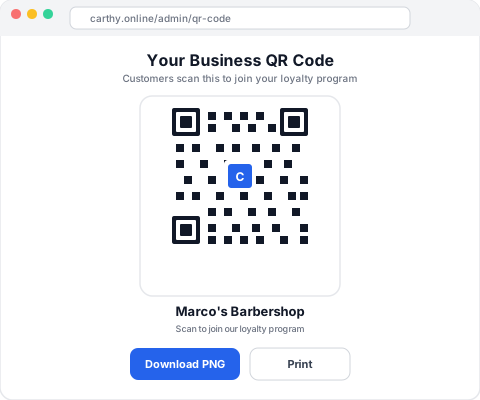
The QR code page also shows the direct URL that customers will land on when they scan, so you can share it digitally if needed.
Printing and Displaying Your QR Code
For best results, you want your QR code to be clearly visible and easy to scan. Here are some placement tips:
- At the counter or reception -- where customers naturally pause and can scan easily
- On tables -- if you run a restaurant or cafe, table tents work great
- Near the entrance -- so customers see it when they walk in
- On printed materials -- menus, flyers, business cards (use a tool like Canva for easy designs)
Print Recommendations
| Format | Size | Best For |
|---|---|---|
| Counter stand | A5 or A6 | Checkout areas and reception desks |
| Table tent | A6 folded | Restaurant and cafe tables |
| Wall poster | A4 or A3 | Waiting areas and shop windows |
| Sticker | 10x10 cm | Doors, mirrors, and other surfaces |
Tip
Make sure the QR code is at least 3x3 cm when printed. Smaller sizes can be hard for phone cameras to scan, especially in low light.
Carthy provides a print-optimised version that includes your business name and a short instruction text. Use the "Print" button on the QR Code page to get this layout.
The Customer Registration Flow
Here is what happens when a customer scans your QR code:
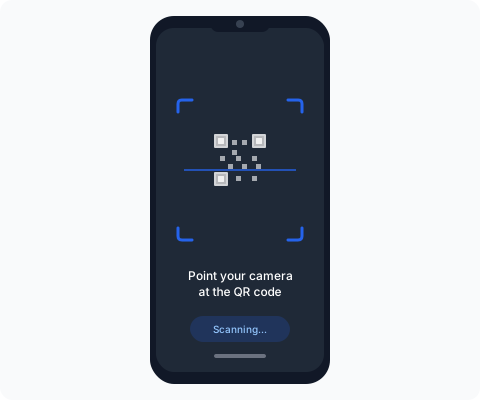
- They point their phone camera at the QR code
- A link appears -- they tap to open it in their browser
- They see your business name and a simple registration form
- They enter their first name, last name, email, and date of birth
- They accept the terms and privacy policy
- They tap "Join"
- They instantly receive their digital loyalty card on screen
- A copy is also sent to their email for safekeeping
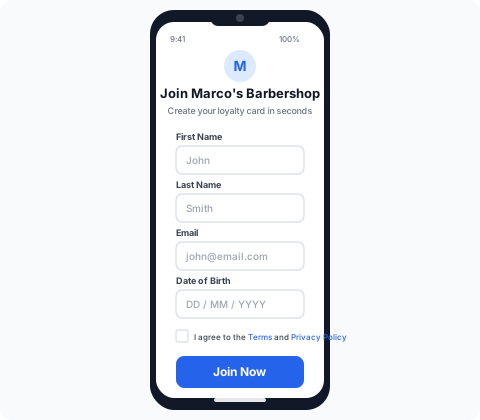
The whole process takes about 30 seconds. No app download required -- it all happens in the browser. Both iPhone and Android cameras can scan QR codes natively.
Tip
Encourage your staff to guide first-time customers through the registration. A friendly "Would you like to join our loyalty program? Just scan this QR code!" goes a long way.
What Customers Receive
After registering, your customer gets:
- A unique QR code displayed on screen that your staff will scan on future visits
- A welcome email with their loyalty card QR code attached
- A message confirming they have joined your business's loyalty program
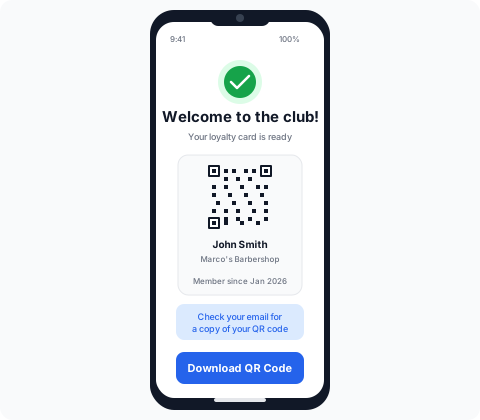
Customers should save their QR code email or take a screenshot. They will need to show this QR code on each visit so your staff can record it.
Important
If a customer loses their QR code, they can find it in their welcome email. As a business owner, you can also look up their record in the Customers section of your dashboard.
Managing New Registrations
Every time a customer registers through your QR code, they appear automatically in your Customers list on the dashboard. You can:
- Search for customers by name or email
- View details including visit history and promotion progress
- Sort by registration date, name, or number of visits
You do not need to do anything to "approve" registrations. Customers are automatically added and ready to start earning loyalty visits right away.
What's Next
Your QR code is displayed and customers are starting to register. Now it is time to learn how your staff can record visits and track promotions day-to-day.
Continue to the next guide for everything your team needs to know about the daily workflow.
Was this guide helpful?
Let us know so we can keep improving our documentation.