
Getting Started: Setting Up Your Carthy Account
Create your account, configure your business profile, and explore the dashboard. This guide walks you through every step of the initial setup.
Creating Your Account
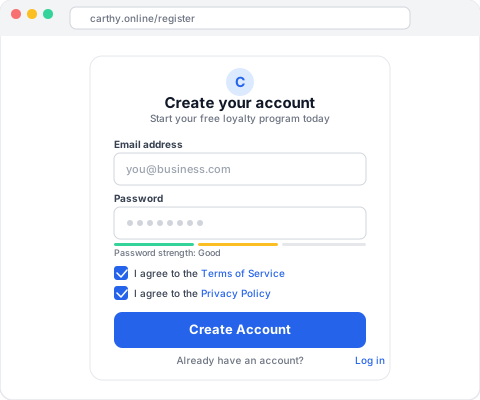
Getting started with Carthy takes just a few minutes. Head to carthy.com/register and you will see the registration form.
You will need to provide:
- Your email address -- this will be your login and where you receive notifications
- A secure password -- at least 8 characters, mix of letters and numbers recommended. See NCSC password guidance for tips
Click "Create Account" and you are on your way. The process takes less than a minute.
Tip
Use your main business email. This is the address your customers will see in welcome emails, and where you will get important notifications about your loyalty program.
Verifying Your Email
After registering, you will receive a verification email. Click the link in the email to confirm your account. This step ensures the security of your account.
If you do not see the email:
- Check your spam or junk folder
- Make sure you entered the correct email address
- Wait a few minutes -- emails can sometimes be delayed
- Try the "Resend verification" link on the login page
Important
You must verify your email before you can complete your business profile and start using the dashboard.
Setting Up Your Business Profile
Once your email is verified, you will be asked to complete your business profile. This information appears on your customers' loyalty cards, so make sure it is accurate.
You will fill in:
| Field | What to enter | Why it matters |
|---|---|---|
| Business Name | Your public-facing business name | Shown to customers on loyalty cards and emails |
| Legal Entity Name | Registered company name | For compliance and your records |
| Business Address | Your physical location | Helps customers find you -- keep this consistent with your Google Business Profile |
| City & Postal Code | Where you operate | Regional settings and localisation |
| Country | Your country of operation | Currency and regulatory compliance |
Tip
Use the name your customers know you by. If your legal name is "ABC Holdings Ltd" but everyone knows you as "Joe's Coffee", use "Joe's Coffee" as the business name.
Exploring the Dashboard
After completing your profile, you land on the Carthy Dashboard. This is your command centre. Here is what you will find:
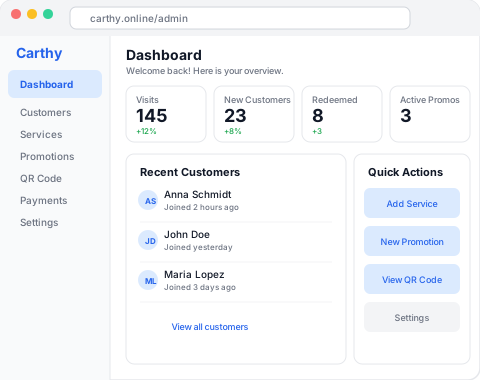
- Dashboard -- A quick overview of your customers, visits, and active promotions
- Customers -- A searchable list of everyone who has joined your loyalty program
- Services -- Define the services or products your business offers
- Promotions -- Create and manage loyalty rewards
- QR Code -- Your unique business QR code for customer registration
- Payments -- Manage your subscription plan and see usage
- Settings -- Update your business profile and account details
Take a few minutes to explore. Everything is designed to be intuitive, but if you ever need help, these guides have you covered.
Adding Your Services
Before you create promotions, you need to define the services your business offers. Services are what your customers come in for -- haircuts, coffee, car washes, massages, etc.
To add a service:
- Go to Services in the sidebar
- Click "Add Service"
- Enter the service name (e.g., "Espresso", "Men's Haircut")
- Toggle it to Active so it can be used in promotions and visits
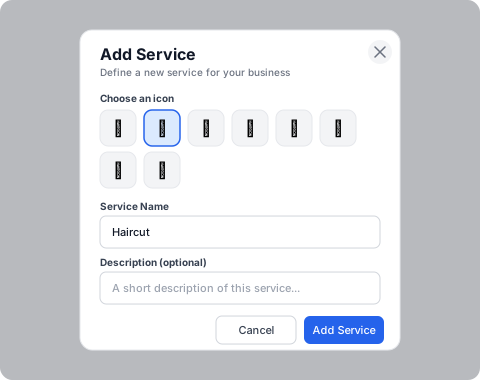
You can add as many services as your plan allows. On the Free plan, you can have up to 2 services.
Tip
Keep service names short and clear. Your staff will need to select these quickly when recording visits.
Creating Your First Promotion
Promotions are the heart of Carthy. A promotion rewards customers after they have completed a set number of visits for a specific service.
To create a promotion:
- Go to Promotions in the sidebar
- Click "New Promotion"
- Choose which service the promotion applies to
- Set the number of visits required (e.g., 10 visits)
- Write the reward description (e.g., "Free coffee on your next visit")
- Set the start date and optionally an end date
- Click "Create Promotion"
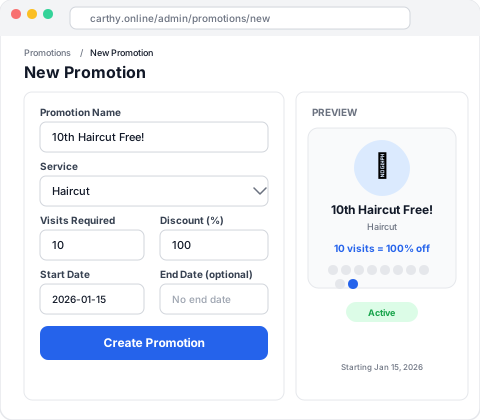
Once a promotion is active, every time a customer reaches the required number of visits for that service, your staff will be alerted so they can offer the reward.
Important
Make sure you have at least one active service before creating a promotion. Promotions are always linked to a specific service.
What's Next
Your account is set up, your services are defined, and your first promotion is live. The next step is to get your QR code printed and displayed so customers can start joining your loyalty program.
Continue to the next guide to learn all about setting up your in-store QR code and the customer registration experience.
Was this guide helpful?
Let us know so we can keep improving our documentation.