
Recording Visits with the CarthyAdmin Mobile App
Learn how to use the CarthyAdmin mobile app to scan customer QR codes, record visits, handle promotion alerts, and help customers redeem rewards.
Getting Started with the CarthyAdmin App
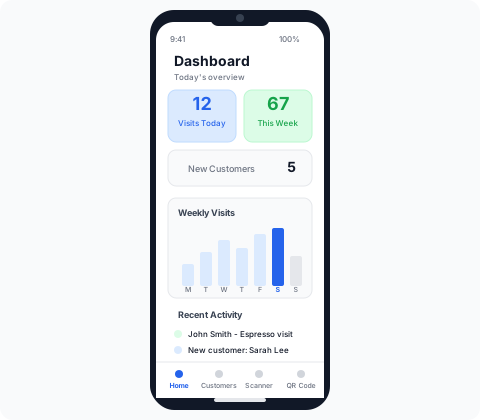
The CarthyAdmin mobile app is the fastest way for staff to scan customer QR codes and record visits on the go. Your business owner will provide you with login credentials or set up a staff account for you.
- Download the CarthyAdmin app from the App Store
- Open the app and enter your email and password
- You will land on the dashboard
Tip
The CarthyAdmin app is available on the App Store for iOS devices. Android support is coming soon.
Scanning a Customer QR Code with the Mobile App
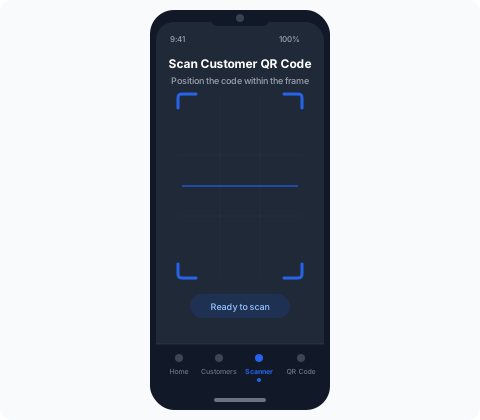
When a returning customer comes in and wants to record their visit, use the CarthyAdmin mobile app to scan their QR code. Here is what to do:
- Open the CarthyAdmin app on your phone or tablet
- Tap the Scanner tab at the bottom of the screen
- Tap "Open Camera" to activate the scanner
- Point your device camera at the customer's QR code
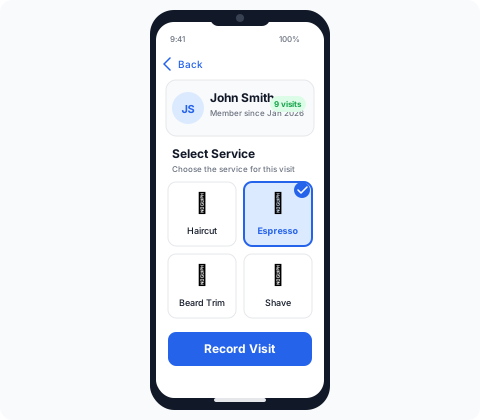
- The customer's profile loads automatically with their name and visit stats
- Select the service they are here for from the grid
- Tap "Record Visit" to confirm
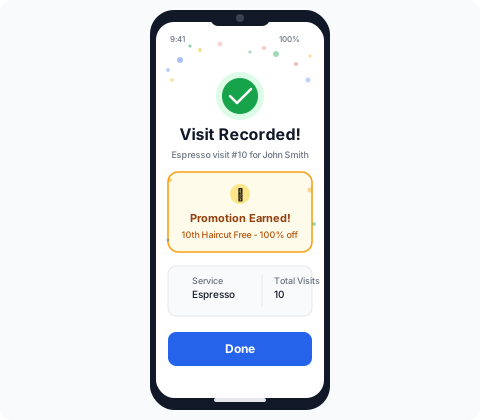
The visit is recorded instantly and the customer's progress towards any active promotions is updated automatically. You will see a success screen that auto-dismisses after a few seconds.
Tip
You can also find customers manually by tapping the Customers tab and searching by name or email. This is handy if a customer forgot their QR code.
Recording a Visit Step by Step
Here is the detailed flow for recording a visit:
1. Find the Customer
Use the search bar in the Customers section. Type the first few letters of their name or email address. Results appear as you type.
2. Select the Service
On the customer's detail page, click "Record Visit" and choose the service from the dropdown. Only active services appear in the list.
3. Confirm
Review the details and confirm. The visit count for that service increases by one, and the page updates to show the new total.
Important
Double-check that you are recording the visit for the correct customer and service. Visits cannot be undone from the staff view -- only the business owner can manage visit records.
Promotion Alerts and Rewards
When a customer reaches the required number of visits for a promotion, Carthy lets you know. Here is what to look for:
- On the customer's detail page, their promotion progress is displayed as a visual tracker
- When a promotion is ready to redeem, it will be highlighted with a clear indicator
- You will see the reward description so you know exactly what to offer
Example Scenario
Say you have a promotion: "Buy 10 coffees, get 1 free". When a customer's 10th coffee visit is recorded, you will see their promotion marked as complete. Tell them the good news and provide the reward!
After the reward is given, the promotion counter resets and the customer starts working towards their next reward.
Common Scenarios
Customer forgot their QR code
No problem. Search for them by name or email in the Customers section. You can still record their visit without scanning.
Customer is not registered yet
Point them to your business QR code display. They can register in 30 seconds and you can record their first visit right away.
Customer asks about their progress
Pull up their profile in the Customers section. You can see exactly how many visits they have for each service and how close they are to earning a reward.
Wrong service recorded
Contact your business owner or manager. They have the ability to manage visit records from the admin dashboard.
Tips for a Great Customer Experience
- Mention the loyalty program to every new customer -- "Have you joined our loyalty program?"
- Remind returning customers to show their QR code or tell you their name
- Celebrate milestones -- "You are 2 visits away from a free coffee!"
- Record visits promptly -- do it while the customer is still there so they can see their progress
- Know your promotions -- be familiar with what rewards are available so you can explain them
Tip
A little enthusiasm goes a long way. Research shows that customers who feel recognised and appreciated become loyal regulars, and that is exactly what Carthy helps you build.
Quick Reference
| Task | Where to Go | What to Do |
|---|---|---|
| Scan a customer | Scanner tab | Tap Open Camera, point at QR code |
| Record a visit | Check-in screen (after scan) | Select service, tap Record Visit |
| Check promotion status | Customers tab > [Name] | View promotion progress section |
| Find a customer manually | Customers tab | Use search bar with name or email |
| View all customers | Customers tab | Browse the full list, use sort options |
That covers everything you need for day-to-day mobile app operations. If your business uses a USB QR scanner at a counter or reception desk, check out the next guide for setup instructions.
Was this guide helpful?
Let us know so we can keep improving our documentation.